Providing technical support information for webPDF

Some support cases require additional technical information to better understand situations and reproduce reported issues.
The goal is to resolve the support case with minimal effort on the customer side, both in time and in coordination. Starting with version 7, webPDF provides a feature that lets you quickly collect all relevant information, including:
- webPDF configuration files
- system settings
- operation log files
The collected data is stored on your local file system and can then be sent to technical support.
If you already received a support identification number (SID), include it so your support case can be assigned faster.
Below is a step-by-step guide with the required actions.
If you already installed webPDF 7 (build 1723 or later), you can also open support information directly via http://localhost:8080/webPDF/admin/?support. If you are not logged in as administrator, you will be asked for user name and password first (see step 3).
After that, you can continue directly with step 7.
If webPDF is running and there are no access restrictions, open the portal page in your browser:
Please note that localhost may differ in your environment. If needed, check with your system administrator.
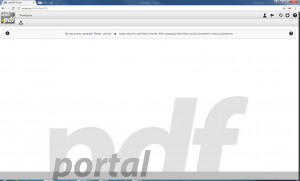
- After opening the portal page, your browser should display the following:
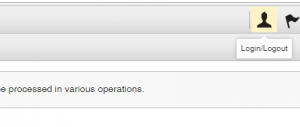
- To access support information, you need to log in. After clicking the login button on the right side of the portal, an input form appears:
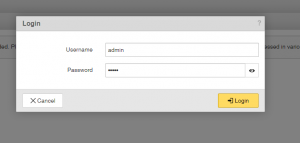
- If the credentials were not changed, use user name
adminand passwordadminto access the webPDF administration area:
- Open the administration section via the following action:

- After opening it, your browser should display the following:
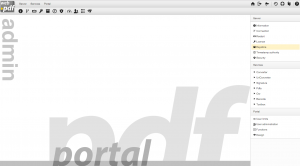
- In the
Serversection on the right, selectInformation:

- After running the server information action, switch to the
Supporttab in the following dialog:
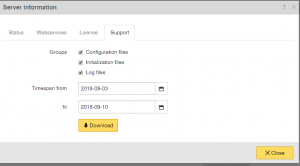
- If you want to keep monitoring period and file selection unchanged, click
Downloadto save the support information archive to your hard drive:
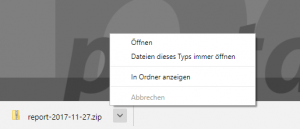
Then send the packed support information to support@softvision.de.